
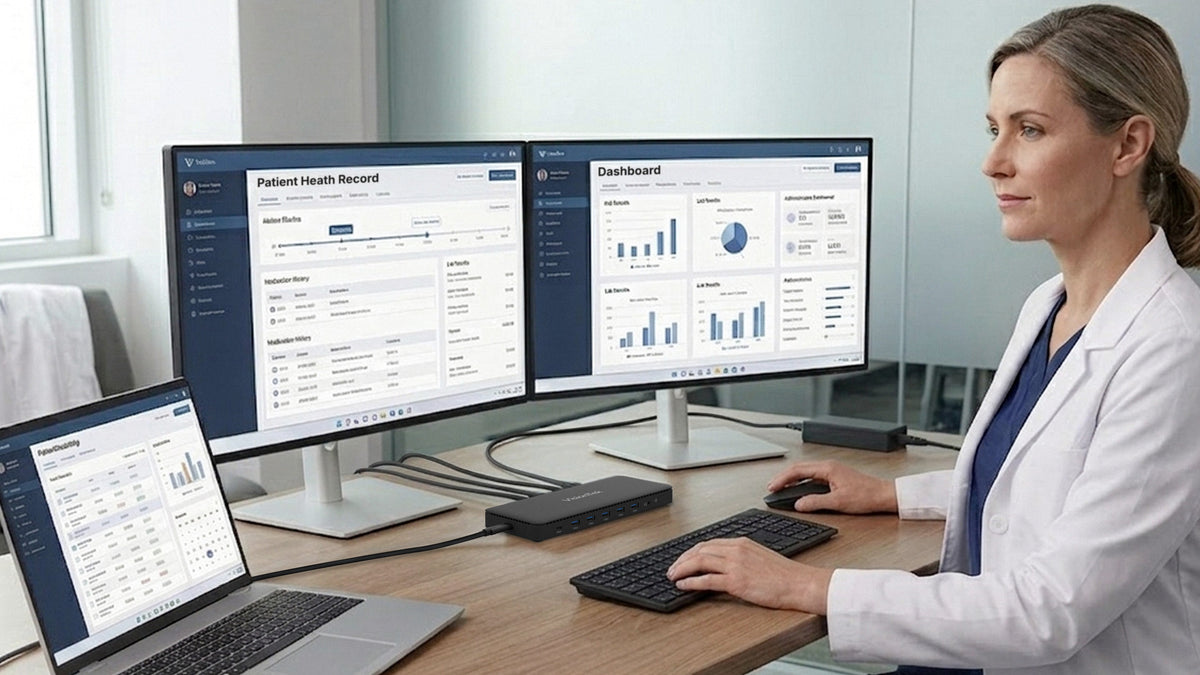
A billing specialist is reviewing a claim, but the supporting documentation is hidden behind several windows. A quality engineer is comparing inspection results with a procedure on a laptop screen. A practice manager arrives at another office and discovers the available cable doesn’t connect to the laptop.
Different jobs. Same frustration: the healthcare workstation is getting in the way.
Healthcare organizations and medical device manufacturers depend on people who manage complex information. A thoughtfully configured workstation can keep that information visible and make everyday connections easier.
Your employees already have enough puzzles to solve. “Why won’t this monitor connect?” shouldn’t be the morning warm-up.
The best place to start is with the person’s work, rather than the maximum number of screens a desk can hold.
Two Monitors: A Practical Setup for Everyday Healthcare Operations
For many healthcare office roles, two external monitors provide useful space to work across related applications.
A medical billing specialist could review a claim on one screen while checking supporting documentation on the other. A medical coder might keep an approved coding reference beside the record being reviewed. A patient scheduling coordinator could view appointment availability alongside referral information.
Other potential users include:
Practice managers: Compare staffing schedules with operational reports.
Referral and authorization coordinators: Work between requests and payer portals.
Revenue cycle specialists: Review account details alongside payment or denial information.
Medical device document control specialists: Compare revisions and track approvals.
The goal is straightforward: keep the information needed for a task visible together. Fewer overlapping windows means less searching for the one you just had open.
Product to Consider: VisionTek VT4600DL Dual 4K Docking Station
The VisionTek VT4600DL Dual 4K Docking Station supports up to two external 4K displays at 60Hz, with HDMI and DisplayPort connection options.
It also brings together:
Gigabit Ethernet for wired network access.
Five USB-A ports and one USB-C accessory port for peripherals.
A headset connection for compatible audio equipment.
Up to 100W laptop charging through a compatible USB-C connection.
For a billing workstation, that could mean two monitors, a keyboard, a mouse, a headset, and wired networking connected through one dock.
You don’t need 4K monitors to use it. Choose displays and text scaling that make the employee’s work comfortable to read.
Before deployment: DisplayLink software is required for full functionality. The VT4600DL supports compatible Windows, macOS, and ChromeOS systems through USB-C or USB-A. Laptop charging requires a compatible USB-C connection; USB-A does not deliver laptop power.
More Screens for Workflows That Actually Need Them
Some roles benefit from keeping three or four information sources visible at once.
Within medical device manufacturing, a regulatory affairs specialist preparing a submission might need a draft, reference requirements, a tracking spreadsheet, and review comments open together.
A quality engineer investigating an issue could compare inspection data, a procedure, corrective and preventive action records, and supplier documentation. A healthcare operations analyst might need several dashboards and reports visible during a detailed review.
These are situations where additional displays may be useful. Start by asking what the employee needs to compare, rather than whether there is room for another monitor.
Product to Consider: VisionTek VT8100DL Quad 4K Docking Station
The VisionTek VT8100DL Quad 4K Docking Station supports up to four external 4K displays at 60Hz through two HDMI and two DisplayPort outputs.
It also includes 2.5 Gigabit Ethernet, USB accessory connections, and up to 100W laptop charging through a compatible USB-C connection.
Consider it for regulatory affairs, quality analysis, research administration, and complex operational reporting when the workflow justifies more than two displays.
A dock expands connectivity; it doesn’t add computing power to the laptop. Engineering teams should still test their actual applications and graphics workloads before choosing a configuration.
And while four screens can be helpful, they don’t automatically make four simultaneous meetings a good idea.
Before deployment: DisplayLink software is required for full functionality. USB-A host connections do not support laptop charging.
Make Working Across Locations Easier
Practice managers may rotate between clinics. Healthcare IT specialists may support multiple facilities. Medical device trainers and field service engineers may travel to customer sites.
A portable dock can help them connect to the displays, network, and accessories available at an approved workspace without carrying a collection of separate adapters.
Product to Consider: VisionTek VT350 Portable USB-C Docking Station
The VisionTek VT350 Portable USB-C Docking Station combines HDMI, DisplayPort, USB-A, USB-C data, and Gigabit Ethernet connections in a compact design.
It supports one external display at up to 4K at 30Hz, or two displays at 1080p at 60Hz on compatible systems. It also supports up to 100W power passthrough with a suitable USB-C charger, sold separately.
Potential users include:
Regional practice managers working from different administrative offices.
Healthcare IT support specialists connecting at approved workstations.
Medical device trainers presenting materials in training rooms.
Field service engineers completing documentation between assignments.
Check compatibility first: Video requires USB-C DisplayPort Alt Mode, and dual-display operation requires MST support. macOS supports one external display through this dock.
That quick compatibility check is considerably more enjoyable at your desk than five minutes before a presentation.
Give Cables a Place in Your Workstation Plan
USB-C describes a connector shape. It doesn’t mean every cable supports the same charging, data transfer, or video capabilities.
That distinction matters when employees connect laptops to docks, displays, or approved external storage devices.
Product to Consider: VisionTek USB4 80Gbps Cable with 240W Power Delivery
The VisionTek USB4 80Gbps Cable with 240W Power Delivery is 4.9 feet long and supports up to 80Gbps data transfer and 240W Power Delivery with compatible equipment.
It’s an option for healthcare IT teams standardizing cables, research staff connecting supported peripherals, and medical device engineers transferring large project files between compatible devices.
Actual performance depends on the equipment at both ends. A higher-rated cable won’t increase a dock’s charging output or add video capabilities to a laptop.
Use the supplied dock cable where appropriate, and select replacement or additional cables by their required function. Labeling them can also save IT from another expedition into the mystery-cable drawer.
Healthcare Workstation Comparison: Match the Setup to the Role
Standardization works best when it follows employees’ needs. Use these examples as starting points, then confirm the requirements of each role.
| Product | Work Pattern | Potential Users | Key Consideration |
|---|---|---|---|
| VT4600DL | Two applications or documents side by side | Billing specialists, coders, scheduling and referral coordinators, practice managers | Up to two 4K displays at 60Hz; DisplayLink software required |
| VT8100DL | Three or four information sources visible together | Regulatory affairs specialists, quality engineers, operations analysts | Up to four 4K displays at 60Hz; select when the workflow needs additional screens |
| VT350 | Frequent movement between offices or customer sites | Regional practice managers, IT support specialists, trainers, field service engineers | USB-C DisplayPort Alt Mode required; macOS supports one external display |
| USB4 80Gbps/240W Cable | Compatible charging and data connections | IT, research, and medical device engineering teams | Actual performance depends on the connected equipment |
Pro Tips: Test Before a Wider Rollout
Test each configuration with representative users and their actual equipment. Confirm:
Screen needs: How many displays help the employee complete the task?
Compatibility: Do the laptop, dock, cables, and monitors support the intended setup?
Software: Can IT deploy required drivers and permissions?
Charging: Is the dock’s output sufficient for the laptop?
Placement: Are displays positioned to protect sensitive information?
Environment: Is the equipment appropriate for the location and its cleaning requirements?
These recommendations focus on office, administrative, research documentation, and engineering workstations. Bedside use, diagnostic image interpretation, and connections to medical equipment require a separate assessment of applicable requirements.
Create a Workspace That Fits the Work
A useful workstation gives employees enough screen space, the right connections, and a setup they can rely on from day to day.
For many healthcare office roles, that starts with a practical dual-monitor configuration. For more complex work, additional displays may make sense. For employees moving between locations, portability becomes the priority.
Explore VisionTek’s Healthcare IT Solutions, or talk with our team about matching workstation equipment to your employees’ needs.
Because the most interesting thing happening at the desk should be the work, rather than the troubleshooting.
Explore VisionTek Healthcare IT Solutions →
Share:
Build Better Financial Workstations for Analysts and Advisors