

The Wall Street Journal recently highlighted an uncomfortable truth: when a candidate’s video freezes or audio stutters, even briefly, interviewers may judge them more harshly and they’re less likely to receive an offer.
Why glitches can hurt more than we think
Even small disruptions can create “friction” that changes how an interviewer experiences you:
- It feels unnatural. When your video stutters, the conversation can take on an uncanny, “something’s off” vibe (you don’t need The Ring energy during an interview).
- It increases effort for the interviewer. Audio dropouts force people to work harder to follow your answers and repeated “Can you say that again?” moments break momentum.
- It disrupts rapport. Interviews are about connection and clarity. Glitches interrupt both.
The frustrating part? None of this reflects your ability to do the job.
 Is it “just Wi-Fi,” or can hardware help?
It’s not only your Wi-Fi provider. Video glitches typically come from a mix of:
- Wi-Fi instability (interference, distance, crowded channels)
- Local network congestion (someone streaming, gaming, backups running)
- Computer load (too many apps, CPU spikes, virtual backgrounds)
- App/settings (Teams/Zoom settings, hardware acceleration, HD video)
The good news: hardware can help, especially if it lets you avoid Wi-Fi entirely.
The #1 fix: go wired (yes, really)
If you can do one thing to reduce the odds of freezing, it’s this:
Plug into Ethernet.
A wired connection eliminates most of the random interference that Wi-Fi is vulnerable to.
VisionTek options that make “wired” simple
If your laptop doesn’t have an Ethernet port (most don’t anymore), you can add one quickly:
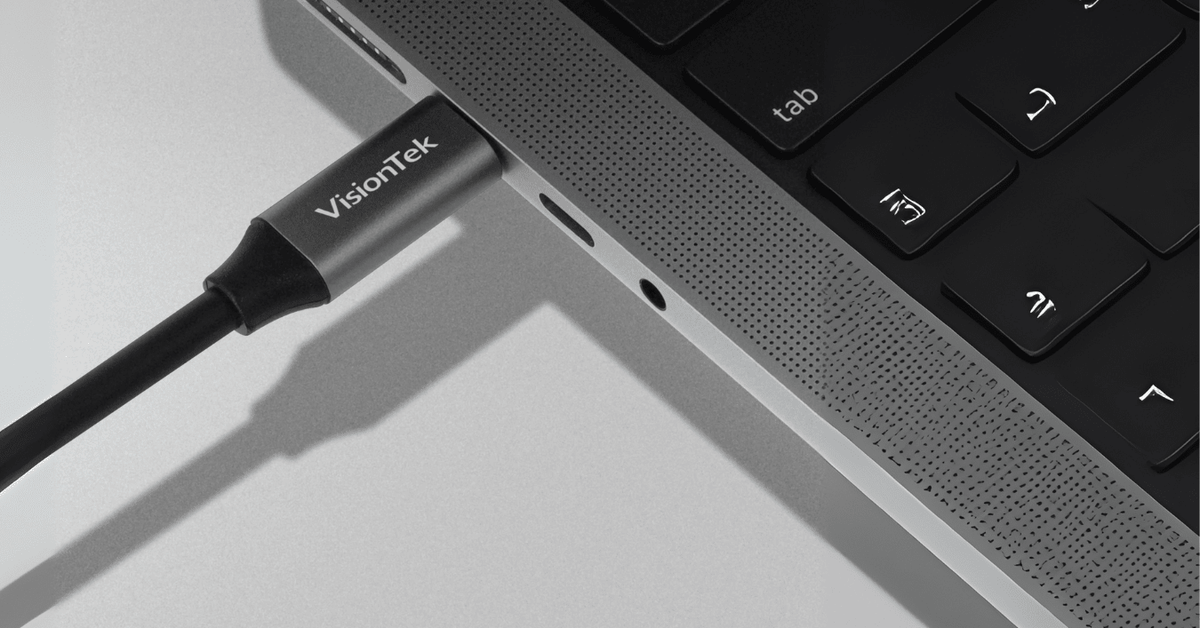
- VisionTek USB-C to Ethernet 1Gbps Adapter (simple plug-and-play)
- VisionTek USB-A 3.0 to 2.5Gb Ethernet Adapter (great if you’re on USB-A)
- VisionTek USB-C Ethernet Adapter (great option for USB-A/C Ports + Ethernet)
- VisionTek docks with Ethernet (one-cable setup + stable connectivity, plus monitors/USB peripherals) like VT400 portable dock (has Ethernet) or higher-end docks with faster Ethernet (e.g., 2.5Gb on some models).
These don’t “fix the internet,” but they remove the most common culprit in home interviews: spotty Wi-Fi.
5 ways to avoid bad internet during a video interview (in order of impact)
1) Go wired (best)
- Laptop → Ethernet adapter/dock → router via Ethernet cable
- Ethernet eliminates interference, signal drops, and most packet loss issues from Wi-Fi.
- This alone prevents many “random” freezes.
2) Have a backup ready
- Keep your phone nearby and ready to enable a hotspot if home internet acts up.
- If possible, test the hotspot once before interview day.
3) Reduce bandwidth + CPU load 10–15 minutes before
- Pause cloud sync (OneDrive/Dropbox), auto-updates, and unnecessary VPN use (unless required).
- Close extra browser tabs (especially YouTube, dashboards, email inboxes)
- Pause large downloads or updates that may be happening in the background (Windows Updates, etc.)
- Close any unnecessary software applications. Task Manager helps dial in which programs are using more CPU, Memory, or Network resources actively
- If your computer's been running all day, give it a restart. In addition to this, a great way to help improve boot times when entering your OS would be to disable any unnecessary applications that currently startup on launch.
- Avoid heavy virtual backgrounds (they can spike CPU/GPU and worsen stutter).
- If your laptop’s fan is loud, your system may already be under load.
4) Do a real test at the same time of day
Run a quick check when you’re most likely to interview (morning/early afternoon).
Video calls are upload-sensitive, so upload speed matters more than most people think.
If you use Fast.com, click “Show more info” and look at:
- Upload speed: Aim for at least ~5–10 Mbps up and down (gives you headroom for network spikes, Wi-Fi variation, and Teams adapting quality).
-
Latency (unloaded vs loaded)
If “loaded” latency spikes dramatically, you’re more likely to see stutters when anything else competes for bandwidth.
5) If you must use Wi-Fi
- Sit close to the router (same room if possible) or at least in an area with minimal walls from you to the router.
- Elevate your router, or ensure it’s not in an enclosed location.
- Use 5 GHz / Wi-Fi 6 if available
- Ask others in the house to pause streaming during your interview window
A simple “no-glitch” interview setup
If you want the most reliable approach:
✅ Wired Ethernet via a dock/adapter
✅ Hotspot backup ready, keep your phone close and silenced
✅ No virtual background + close apps
✅ Be ready to dial-in with your phone if all else fails and let the interviewer know
If you want help setting up a stable interview station
VisionTek’s Chicago-based support team can help you choose the right adapter or dock for your laptop setup (USB-C vs USB-A, dual monitors, etc.). Learn more at visiontek.com.
Good Luck,
Alila Hollander
VP of Human Resources
VisionTek
Share:
The Surprisingly Easy Ways to Sabotage Your Remote Interview (And How Not To)
My Computer is SLOW!! But it Isn’t Broken...It’s just starving for memory (Here’s the Upgrade That Fixes It)