
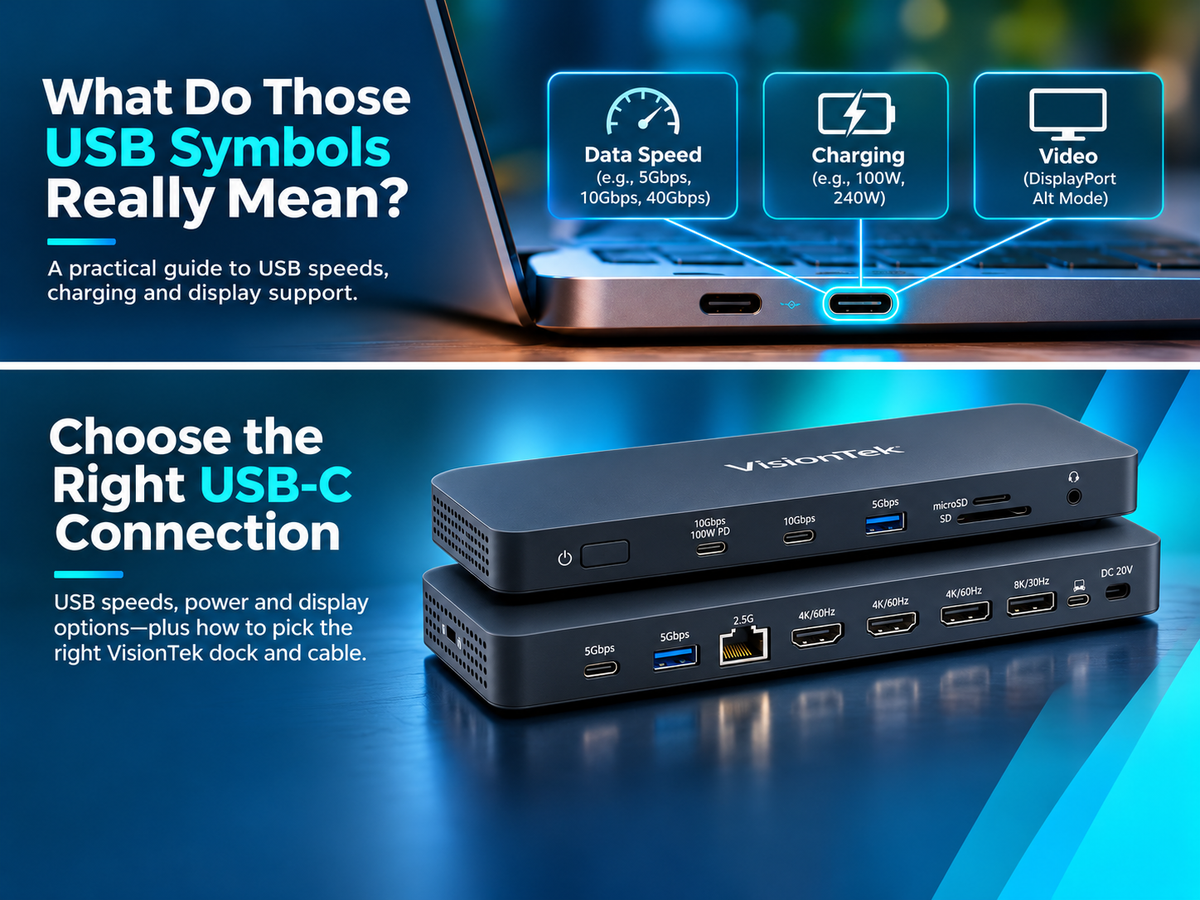
Understand USB speed labels, charging ratings, and display capabilities so you can choose the right VisionTek connection for your workspace.
USB has come a long way from connecting a mouse or printer. Today, a single USB-C connection can charge a laptop, connect external displays, and transfer large files. It can do all of that, but only when the port, cable, and connected devices support those functions.
The symbols beside your ports offer useful clues. Understanding them can help you choose accessories, troubleshoot connection problems, and build a more efficient workspace. This guide explains common USB markings and shows how VisionTek docking stations and USB-C cables fit different needs.
If you have ever plugged in a USB-C cable and thought, "Well, let's see what happens," you are definitely not alone.
USB-C Describes the Connector, Not Everything It Can Do
Two USB-C ports can look identical and offer very different capabilities. Before connecting a device, check three things:
- Data speed: How quickly can the connection transfer information?
- Video support: Can it connect an external monitor through the technology your adapter or dock requires?
- Charging power: Can it charge your laptop, and at what wattage?
These capabilities are separate. A USB-C cable can support substantial laptop charging while still offering only basic USB 2.0 data speeds.
USB Speed Labels: What the Numbers Mean
USB naming has changed over time. You may still see older terms like "SuperSpeed" alongside newer labels that state the speed directly. USB-IF now recommends straightforward names such as USB 5Gbps, USB 10Gbps, and USB 80Gbps.
Honestly, USB naming has changed often enough that it could use its own witness protection program.
These are maximum signaling rates, not guaranteed real-world file transfer speeds. A speed label also does not automatically tell you charging wattage, video support, or monitor count.
Common USB Port Symbols and Markings
USB Trident
The familiar branching USB symbol identifies a USB connection. On its own, it does not provide enough information to choose a cable for high-speed storage, laptop charging, or external displays. For that, you still need to check the device specifications.
"SS" and Speed Numbers
Older SuperSpeed markings may include "SS," sometimes paired with a number such as 10. Newer performance branding emphasizes explicit speed ratings. Use that number to assess data capability, then check power and display specifications separately.
DisplayPort Logo Beside USB-C
A DisplayPort logo beside a USB-C port is a useful indicator of DisplayPort Alt Mode support. This allows compatible equipment to carry a DisplayPort audio and video signal over USB-C. For a USB-C display adapter or Alt Mode dock, confirm that your laptop supports the required video output.
Charging Markings and Wattage Ratings
Battery icons and charging labels can offer clues, but it is still best to check the manufacturer's documentation to confirm whether a port accepts power, supplies power, or supports both. For cables and chargers, look for an explicit wattage rating. Power capability and data performance should be checked independently.
Choose a Cable for the Job
For Charging and Everyday Syncing
The VisionTek USB-C to USB-C 100W Cable, 1 Meter supports:
- Up to 100W Power Delivery
- USB 2.0 data speeds up to 480Mbps
- No video output
It is a practical example of why charging capability and data speed should be checked separately. Choose it for compatible charging and basic syncing tasks. If you need to connect a monitor, choose a video-capable cable instead.
For Higher-Bandwidth Connections
The VisionTek USB4 Cable, 4.9 Feet is rated for:
- Data transfer up to 80Gbps
- Power Delivery up to 240W
- Video support with compatible equipment
Those ratings describe the cable's capability. Your computer, charger, dock, and display must also support the performance you want. Plugging a premium cable into a lower-speed port does not magically turn that port into something faster.
Choose a Dock That Matches Your Laptop
A docking station's display technology matters just as much as its connector.
VisionTek VT4600DL: USB-A or USB-C Docking
The VisionTek VT4600DL Universal Dual 4K Docking Station uses DisplayLink technology and supports:
- Up to two 4K displays at 60Hz
- USB-A or USB-C host connections
- Up to 100W laptop charging through a compatible USB-C connection
- Windows, macOS, and ChromeOS
DisplayLink software is required for full functionality. A USB-A host connection does not charge the laptop. This dock gives you an alternative display connection method rather than relying only on the laptop's native DisplayPort Alt Mode output.
VisionTek VT5400: Thunderbolt 4 Docking
The VisionTek VT5400 Thunderbolt 4 Docking Station offers:
- Thunderbolt 4 connectivity
- Up to 80W laptop charging
- Up to dual 4K displays at 60Hz on supported systems
- USB-A ports, an SD card reader, and Gigabit Ethernet
Display support depends on the host computer. VisionTek specifies single-display operation for base M1, M2, and M3 MacBooks with this dock, and single-display operation through supported USB-C DP Alt Mode Windows connections. Check your exact laptop model before planning a dual-monitor setup.
USB4 Expands Your Options, But Check the Complete Setup
USB4 supports sharing a high-speed connection between data and display traffic. Current specifications extend beyond the earlier 20Gbps and 40Gbps options to include 80Gbps operation. Still, "USB4" by itself is not a promise of a specific charging wattage, monitor count, or resolution.
Match the specifications of the computer, cable, dock, and display to the setup you actually want.
Before You Plug In: A Quick Checklist
- Identify your laptop's port capabilities. Check its specifications for data speed, video output, and charging input.
- Read the cable ratings. Confirm both data speed and wattage, plus video support when needed.
- Check the dock's connection technology. Review DisplayLink, DisplayPort Alt Mode, or Thunderbolt requirements.
- Confirm display limits. Match the laptop and dock to your monitor count, resolution, and refresh rate.
- Check software requirements. Install the required DisplayLink software when using a compatible DisplayLink dock.
A little checking can prevent a familiar frustration: a cable that fits perfectly but still does not do what you need it to do.
Explore VisionTek USB-C cables and docking stations to find a connection that matches your laptop and workspace.

Share:
Staff Picks: Three Small Adapters That Solve Surprisingly Annoying Problems