
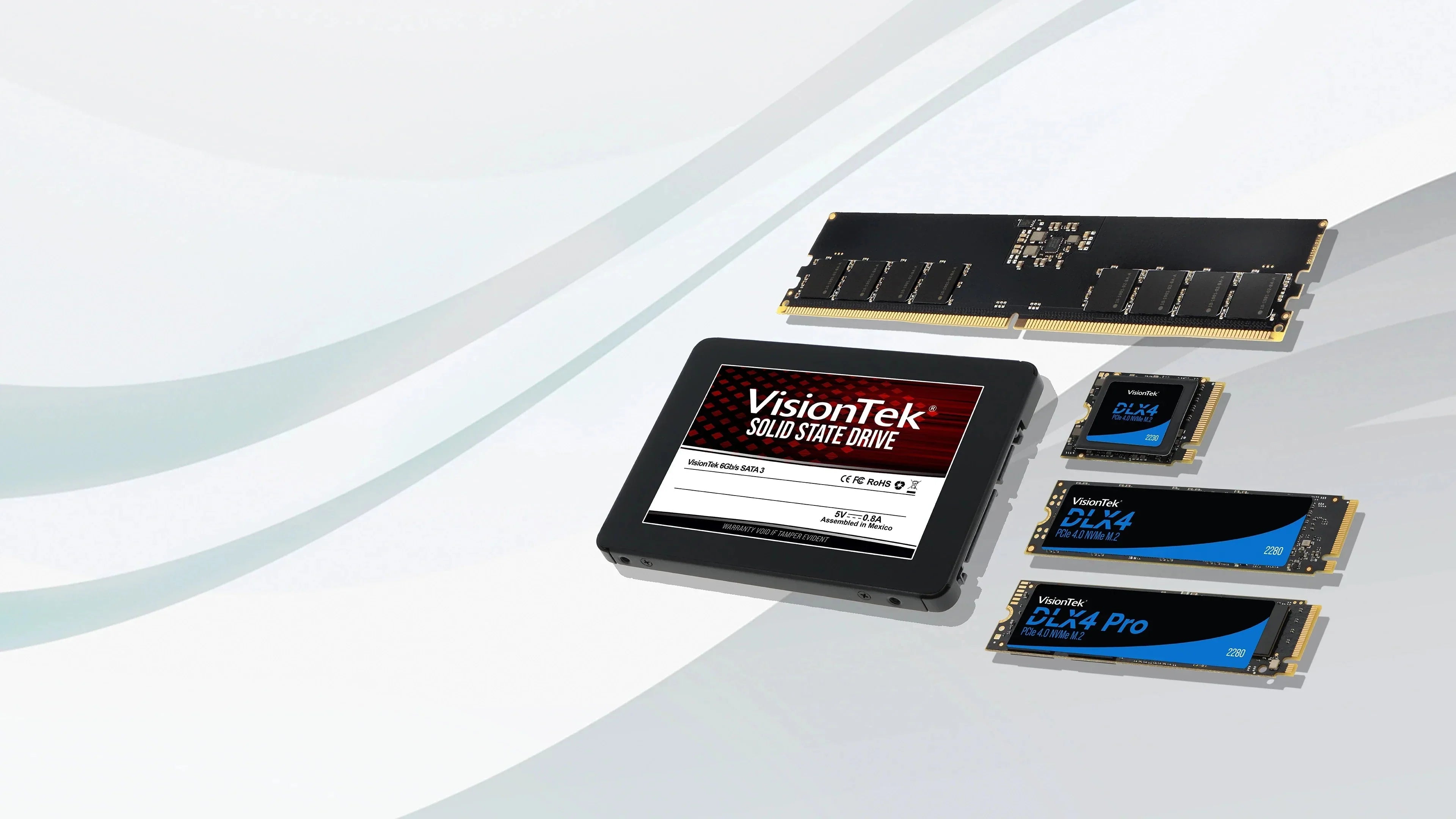
Your Computer Isn’t Slow — It’s Starving for Storage and Memory
Most of my computers don’t suddenly “break.” they gradually feel slower and sluggish. Applications take longer to open, files hesitate before loading and switching between programs feels uneven. Nothing is technically wrong, but something is off.
In most cases, the issue comes down to two things:
- Storage (where your data lives)
- Memory (where your system works)
Understanding the difference is what determines whether your upgrade actually works.
What’s Actually Happening Inside Your System
Every system is constantly moving data. Your operating system loads files, applications pull data from storage and web browsers cache content in the background.
Over time, this creates a steady workload that never really stops.
At the same time, memory fills up with active tasks:
- Open applications
- Browser tabs
- Background services
When memory gets tight, the system starts shifting work back to storage, which is slower.
That’s when performance starts to feel inconsistent.
Storage vs Memory (Simple Way to Think About It)
A useful way to think about this:
- Storage (SSD) = Where everything is stored
- Memory (RAM) = Where everything is actively used
If storage is slow, then opening things takes longer.
If memory is full, then switching between things slows down.
The Real Fix (This Is Where Most People Get It Wrong)
Most people upgrade the wrong component.
They assume:
- “I need more RAM”
- or “I need a faster drive”
The right answer depends on what your system is actually doing.
When to Upgrade Storage vs Memory Decision Guide:
| What You’re Experiencing | What’s Happening in the System | What to Upgrade | Why It Works | Typical Result |
|---|---|---|---|---|
| Slow startup or boot time | System is waiting on storage to load OS files | SSD (SATA) | Faster data access removes delay | Faster startup, quicker login |
| Applications take time to open | Files are being read slowly from storage | SSD (SATA or NVMe) | Reduces load times across all apps | Programs open noticeably faster |
| System freezes when multitasking | Memory is full, system is paging to storage | RAM (DDR4) | More working space prevents slowdowns | Smoother multitasking |
| Browser tabs slow everything down | Memory pressure from multiple active processes | RAM (DDR4) | Keeps active data in memory | Stable performance |
| System feels “old” but still works | Combined storage + memory bottleneck | SSD + RAM | Removes both delays and bottlenecks | System feels refreshed |
Choosing the Right SSD (Storage Upgrade)
| Factor | SATA SSD (2.5”) | NVMe SSD (M.2) | What It Means for You |
|---|---|---|---|
| Compatibility | Very high | System dependent | SATA works in most systems |
| Installation | Uses drive bay | Installs on motherboard | NVMe requires M.2 slot |
| Performance | Consistent, reliable | Higher peak speeds | NVMe benefits newer systems |
| Best Use Case | Replacing older drives | Faster performance on modern systems | Choose based on system support |
| Risk of Mismatch | Very low | Moderate (compatibility matters) | SATA is safest upgrade path |
Tek Tip:
Not all M.2 slots support NVMe. Always confirm compatibility before upgrading or contact us, and we will walk you through it! Teksupport@visiontek.com or visiontek.com for our Tek Chat.
| Factor | 16GB | 32GB | What It Means for You |
|---|---|---|---|
| Everyday Use | Strong baseline | More headroom | 16GB is sufficient for most users |
| Multitasking | Moderate | High | 32GB reduces slowdowns |
| Large Files / Excel | Can reach limits | Much more stable | Higher capacity prevents lag |
| System Responsiveness | Good | Very smooth | Less reliance on storage |
| Best Fit | Office, general use | Heavy workloads | Choose based on usage, not speed |
Tek Tip: Memory increases capacity, not speed.
It gives your system more room to work, not a faster processor.
The Most Effective Upgrade (What Actually Works Best)
In many real-world systems:
The best upgrade is both storage and memory together
- SSD removes delay
- RAM removes bottleneck
This is especially true for:
- Business systems
- Older laptops or desktops
- Multitasking environments
Real-World Example
If your system:
- Takes a long time to boot
- Slows down with multiple applications
- Struggles with spreadsheets or browser tabs
Then upgrading both components provides the most noticeable improvement.
Why This Works
Solid state drives remove the mechanical delays found in traditional storage, allowing systems to retrieve data almost instantly.
At the same time, increasing memory capacity prevents the system from constantly shifting data back to storage, which stabilizes performance.
Together, these changes address both sides of the performance equation.
Final Guidance
If your system still meets your needs but feels slower than it used to:
- Start with storage if load times are the issue
- Add memory if multitasking is the problem
- Upgrade both if you want the most consistent improvement

Share:
Think Your Skills Matter Most? Your Wi-Fi Might Be Deciding the Offer
One Desk, Two Laptops: How to Choose the Right KVM Dock for Your Hybrid Setup