
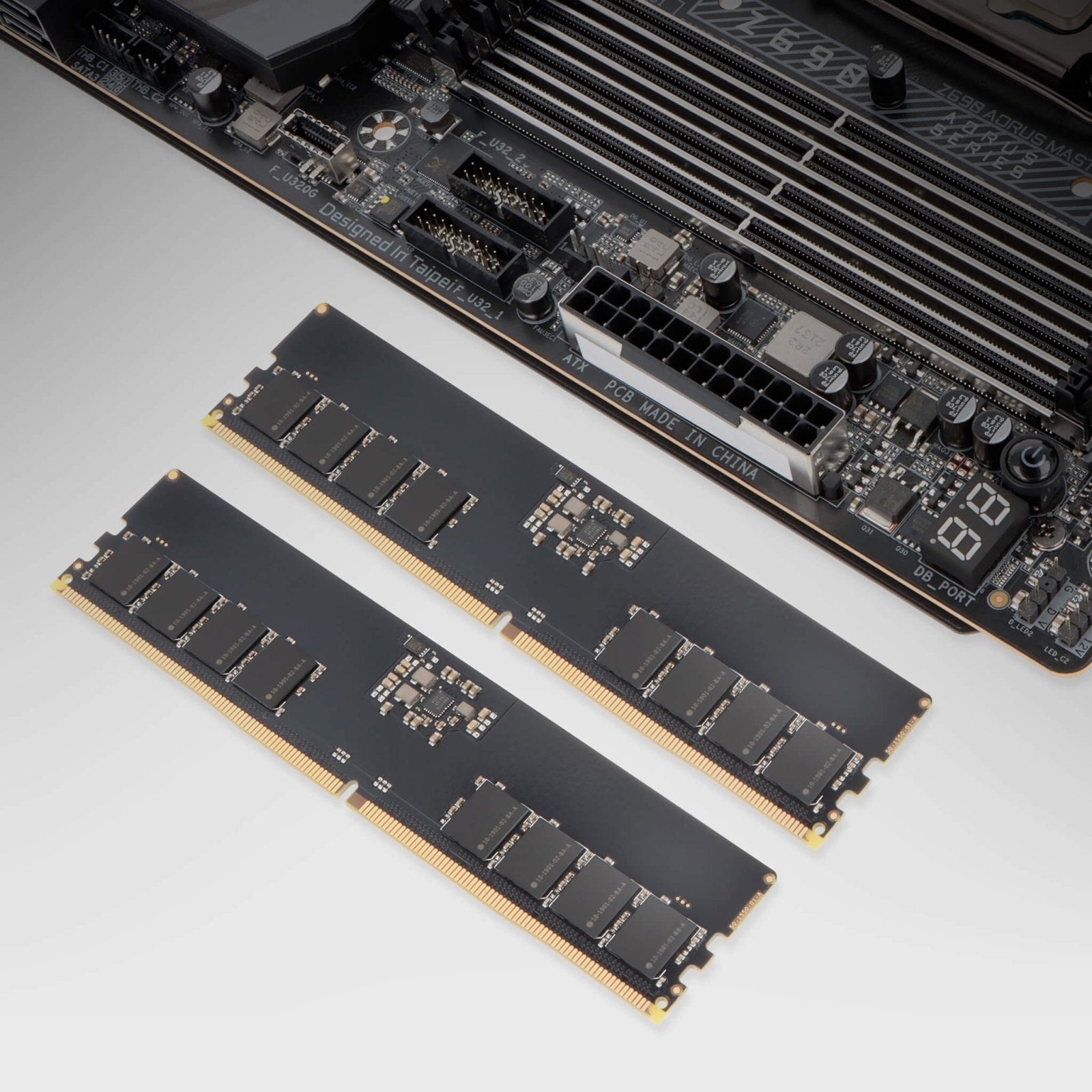
RAM is one of those computer terms most people recognize, but understanding what it actually does can make it much easier to diagnose a slow computer or decide whether an upgrade is worthwhile.
RAM stands for Random Access Memory. It is a type of high-speed, short-term memory that temporarily holds the information your computer needs while you're actively using it. Unlike an SSD or hard drive, RAM does not permanently store your files. Its contents disappear when the computer is powered off.
This guide explains what RAM is, what RAM does in a computer, how DDR memory has evolved, and how to choose compatible RAM when upgrading a laptop or desktop.
The simplest way to think about it? Adding more RAM doesn't necessarily make your computer "think" faster. It gives your computer more room to think about more things at the same time.
What Is RAM?
RAM, or Random Access Memory, is one of the core components inside a computer. It provides a temporary workspace where data can be accessed quickly by the processor and other system components.
Whenever you're using your computer, RAM is helping keep active information close at hand. That might include:
- Applications you currently have open
- Browser tabs and webpages you're viewing
- Documents you're editing
- Data being used by a game
- Background programs and operating system processes
The more applications and browser tabs you have open at once, the more RAM your computer may need to keep everything running smoothly.
When there isn't enough RAM available, the system may need to rely more heavily on slower storage for temporary data. That's one reason a computer can begin to feel sluggish when you're running several programs at once.
If you're considering an upgrade, explore VisionTek desktop memory to compare available DDR4 and DDR5 RAM options.
What Does RAM Do in a Computer?
RAM acts as your computer's active workspace. When you open an application, load a website, edit a document or launch a game, the computer needs quick access to the information required for that task.
Here's an easy way to visualize the relationship between RAM and storage.
Imagine you're preparing dinner in your kitchen.
- Your pantry and refrigerator are your SSD or storage drive. They hold your ingredients until you need them.
- Your kitchen counter is RAM. It's where you place the ingredients you're actively using.
- You are the processor. You're doing the actual work.
With a large countertop, you can spread out several ingredients, utensils and dishes and work efficiently.
With a tiny countertop, you're constantly putting something away to make room for something else. You can still cook dinner, but you'll spend more time moving things around.
Your computer works in a similar way. More RAM gives active programs more working room, which becomes increasingly useful when you're multitasking.
RAM vs. SSD Storage: What's the Difference?
RAM and SSD storage are both forms of computer memory technology, but they serve very different purposes.

If you're trying to decide which component may have the biggest impact on a slow PC, read Computer Running Slow? How to Fix It with an SSD or RAM Upgrade.
A Brief History of RAM: From Early DRAM to DDR5
Early Computer Memory: 1970s to Early 1990s
Early forms of dynamic random access memory, or DRAM, were used in mainframes and early personal computers. Memory capacity was tiny compared with modern systems, often measured in kilobytes or just a few megabytes.
These technologies helped establish the concept behind modern random access memory: the computer could access specific memory locations directly rather than having to read information sequentially.
SDRAM: Approximately 1995–2000
Synchronous Dynamic Random Access Memory, better known as SDRAM, synchronized memory operations with the computer's system clock.
This made memory access more predictable and efficient and helped SDRAM become a standard in many PCs during the late 1990s.
DDR: Approximately 2000–2003
DDR stands for Double Data Rate. DDR technology allowed data transfers on both edges of the clock signal, increasing the amount of data that could be transferred without simply doubling the clock frequency.
This generation also introduced the DDR naming convention that continues with DDR2, DDR3, DDR4 and DDR5.
DDR2: Approximately 2003–2007
DDR2 continued the evolution toward greater bandwidth and improved efficiency. It helped computers keep pace as operating systems and software became increasingly demanding.
DDR3: Approximately 2007–2014
DDR3 increased available bandwidth, reduced operating voltage compared with DDR2 and supported growing memory capacities.
It became one of the most widely adopted RAM generations and remained common in desktops and laptops for many years.
DDR4: Approximately 2014 to Today
DDR4 delivered another substantial step forward in bandwidth, capacity and power efficiency. It became a mainstream standard during the rise of high-performance laptops, gaming PCs, professional workstations and increasingly demanding multitasking workloads.
DDR4 remains extremely common today, which makes it a practical upgrade option for a large number of existing computers.
For compatible DDR4 systems, browse VisionTek desktop memory.
DDR5: Current Generation
DDR5 represents the current generation of mainstream DDR memory. Compared with DDR4, it was designed to support higher data rates, greater memory density and improved power management.
Those improvements make DDR5 well suited to newer systems built for heavy multitasking, gaming, content creation and other demanding workloads.
For a deeper look at the evolution of DDR technology, read Understanding DDR Memory and Its Significance.
DDR3 vs. DDR4 vs. DDR5: What's the Difference?
Each new DDR generation changes more than speed. Physical design, operating voltage, electrical signaling and platform compatibility can also change.

Although DDR4 and DDR5 desktop DIMMs both use 288 pins, they are not interchangeable. Their notch locations, electrical characteristics and signaling are different.
Why Isn't Newer RAM Backward Compatible?
It can be tempting to think about RAM the same way you might think about some USB technologies: if a newer version exists, perhaps you can simply plug it into an older system and use it at a lower speed.
RAM doesn't work that way.
Each DDR generation is designed around a specific electrical and physical architecture. That includes several important differences.
- Notch placement: The connector notch is positioned differently between RAM generations, helping prevent you from installing an incompatible module.
- Voltage: Different generations operate at different voltages and use different approaches to power management.
- Electrical signaling: The way data is transferred changes as memory technology evolves.
- Memory controllers: Modern processors incorporate memory controllers designed to support particular memory technologies and speeds.
- Motherboard design: Your motherboard's memory slots, chipset and firmware also determine which memory configurations are supported.
These differences aren't unnecessary complications. They allow newer generations to improve bandwidth, power efficiency, memory density and overall capability without being restricted by the requirements of much older hardware.
How to Choose the Right RAM for Your Computer
Before purchasing new RAM, don't start by asking, "What's the newest RAM available?" Start by asking, "What RAM does my computer support?"
Check these specifications before upgrading:
- DDR generation: Determine whether your system uses DDR3, DDR4 or DDR5.
- Desktop vs. laptop memory: Desktop computers typically use DIMMs, while laptops generally use smaller SO-DIMM modules.
- Motherboard compatibility: Check the motherboard or computer manufacturer's specifications for supported memory.
- Processor compatibility: The CPU's integrated memory controller also determines which memory technologies and speeds the platform can support.
- Maximum capacity: Computers can have limits on total supported RAM as well as the capacity supported in each memory slot.
- Memory speed: Installing RAM rated faster than your system supports doesn't necessarily mean it will operate at that higher speed.
- Available slots: Check how many RAM slots your system has and whether they're already occupied.
Three Rules to Remember Before Upgrading RAM
- Match the RAM to your system. Your motherboard, processor and overall platform must support the memory you install.
- You cannot mix DDR generations. DDR3, DDR4 and DDR5 are separate technologies and are not interchangeable.
- Newer does not automatically mean better for your computer. The best RAM is the RAM that's compatible with your system and appropriate for your workload.
When Does Adding More RAM Make a Difference?
More RAM becomes especially useful when the amount of memory you're currently using approaches the amount installed in your computer.
You may benefit from additional RAM if you regularly:
- Keep dozens of browser tabs open
- Run several business applications at the same time
- Edit large photos, graphics or video files
- Work with large spreadsheets or datasets
- Run demanding games
- Use virtual machines or other memory-intensive software
But RAM isn't the answer to every slow-computer problem. A slow storage drive, aging processor, overheating system, overloaded startup environment or other hardware issue can also affect performance.
For a more complete approach to upgrading an older computer, see Upgrading Your PC Setup with Better Memory and SSDs.
Pro Tips Before Buying New RAM
- Don't buy based on DDR generation alone. Confirm the form factor, capacity, supported speed and system requirements.
- Check your existing configuration. A computer with two available memory slots may require a different upgrade strategy than one with all slots already populated.
- Look up your computer or motherboard specifications. The manufacturer's documentation is one of the best places to confirm maximum memory capacity and compatible configurations.
- Know whether you're buying DIMM or SO-DIMM memory. Desktop and laptop memory modules are physically different.
- Don't force a memory module into a slot. If the notch doesn't align correctly, stop and verify that you have the correct memory type.
Final Thoughts
RAM can seem complicated when you start comparing generations, capacities, speeds and specifications. But its basic purpose is simple: RAM gives your computer fast, temporary workspace for whatever you're doing right now.
Think back to the kitchen counter. Storage keeps everything you own. RAM gives you the working space to use it.
If your computer struggles when you're running multiple applications, keeping many browser tabs open or handling memory-intensive workloads, a RAM upgrade may help. Just remember that compatibility comes first.
Before purchasing memory, identify the DDR generation, form factor, supported speed and maximum capacity for your system.
Ready to explore your options? Browse VisionTek DDR4 and DDR5 desktop memory to find compatible memory upgrades for your setup.

Share:
Work Starts Here: Introducing VisionTek Workspace Kits
What is an SSD? Why It Makes Your Computer Faster...